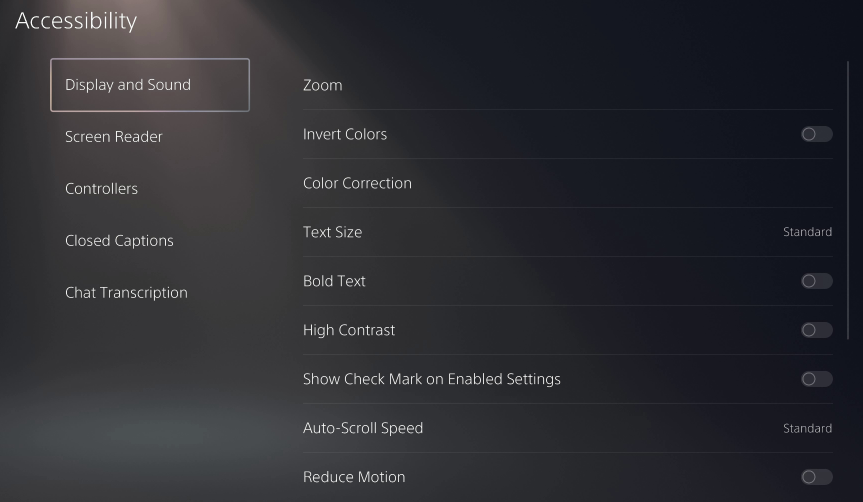
PlayStation 5 Settings
How to pair and configure PS5 for 2K Mate (Xbox users please skip)
PlayStation 5 Settings
Xbox users please skip this section. Go to Xbox Setup.
Pair to PS5
Fundamentals
- If you only use one PSN account, you only need to pair up once
- If you switch PSN accounts (e.g., your friend's account), you need to pair up again
- Note: After switching accounts, the remote play switch is turned off by default. Be sure to turn it on
Make sure your PC and PS5 are in the same local network
- Make sure your PC and PS5 are connected to the same router
- Highly recommended: Both PC and PS5 use wired network cable
- If one device uses WiFi, there is a probability of error, depending on your signal quality
- Never connect both devices with WiFi — there will be problems
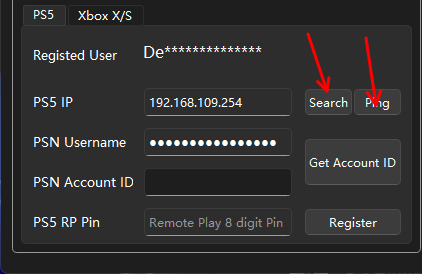
Automatically find your PS5 IP address
- Click "Search" to find the PS5 in the PC local network
- If you don't find one, check that PS5 and PC are in the same local network
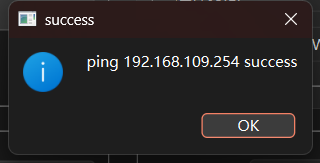
- If found, click Test Connection — it should appear successful
Get PSN Account ID
- Fill in your PSN Username (e.g.,
xCashoutYT)
- Click "Get Account ID" — wait 3 seconds, the Account ID will show up
- If it fails, check that the username is spelled correctly (case-sensitive)
Note: Your privacy settings need to allow "Anyone" to find you in search. You can change this back once you have your Account ID.
Pair (The most important step)
- PS5: Settings → System → Remote Play → Enable Remote Play → Turn On the Switch
- This switch is turned off by default, especially if you switch to a friend's account
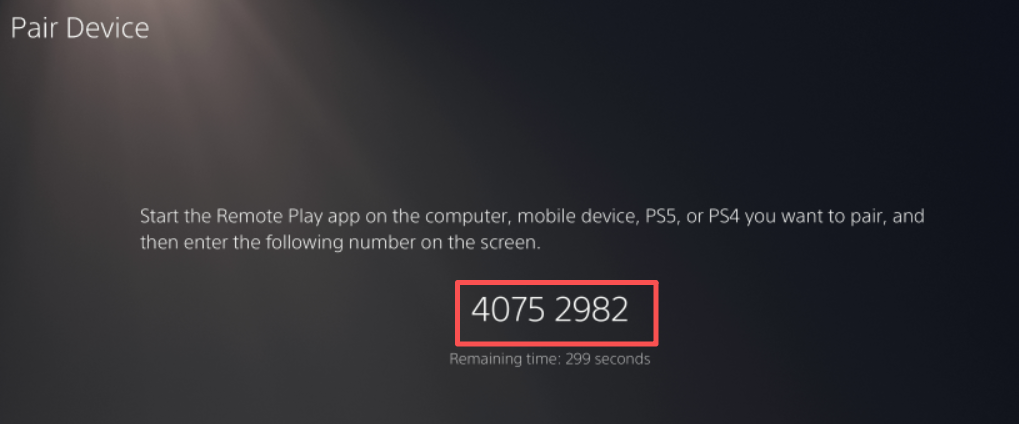
- PS5: Return to Remote Play → Click "Pair Device" → note the 8-digit Pin code
- PC: Fill the Pin code into PS5 RP Pin → Click "Register"
- PS5: Make sure the PS5 is on the "8-digit" interface
- If successful, the pairing is completed. If something goes wrong, try again
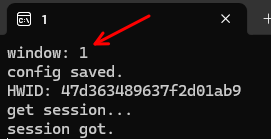
Test Connection
- Select the current task on the right: "Do Nothing"
- Click the RUN button
- After a few seconds, check if you can see the PS5 screen in the monitor
- If you see the PS5 screen, the pairing was successful
PS5 Settings > Screen & Video > Video Output > Color
| Setting | Value |
|---|---|
| HDR | Off |
| Deep Color | Off |
| RGB | Full |
⚠️ This is very important! Setting errors can cause script recognition errors.
PS5 Settings > Assistance Tools > Controller > Custom Button Configuration
Off (by default)
PS5 Settings > Assistance Tools > Display & Sound
All closed (by default)