Xbox Series S/X Settings
How to configure Xbox Series S/X for 2K Mate (PS5 users can skip)
Xbox Series S/X Settings
PS5 users can skip this section. Go to PS5 Setup.
XBOX Settings
| Setting Path | Value |
|---|---|
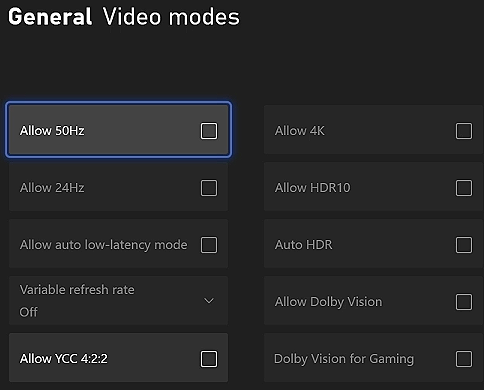
| General > TV & Display > Video Modes | All off |
| General > TV & Display > Video Fidelity & Overscan | Configure as needed |
| Devices > Remote Features | Enable |
| Accessibility > High Contrast | Off |
Install ViGEmBus
Download and install ViGEmBus driver:
XStreaming
Download and install XStreaming:
- https://github.com/Geocld/XStreamingDesktop/releases
- File name:
XStreaming-Setup-x.x.x.exe
Prerequisites
- Make sure your PC and Xbox are connected to the same router
- Log into your Xbox account in XStreaming
XStreaming Settings
- Settings > Base — Configure base settings
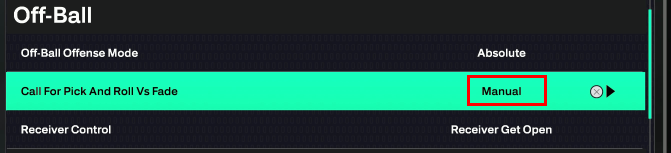
- Settings > Streaming — Configure streaming quality
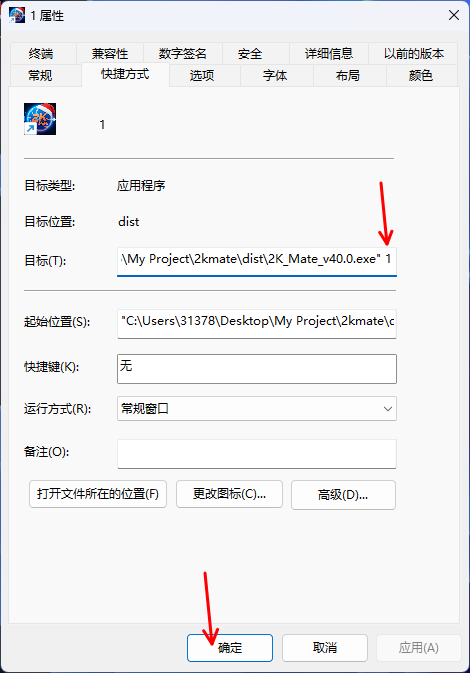
- Settings > Gamepad — Configure gamepad mapping
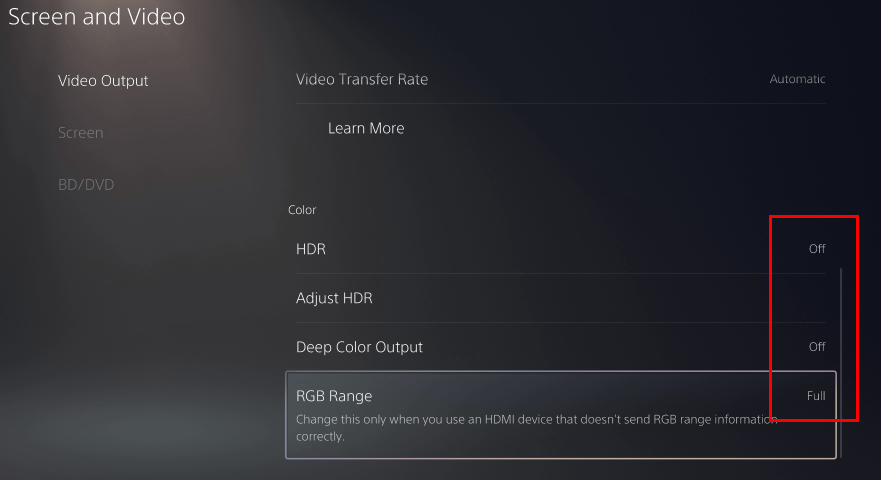
- Settings > Others > Keyboard Mapping — Set up keyboard controls
Using XStreaming to Control Xbox and 2K26
- Close the 2K26 game
- Turn off the Xbox controller power — ensure no controllers are plugged into the Xbox
- XStreaming: Terminal > Find your Xbox > Start Stream
- Once you see the Xbox screen, you can control the Xbox with your keyboard
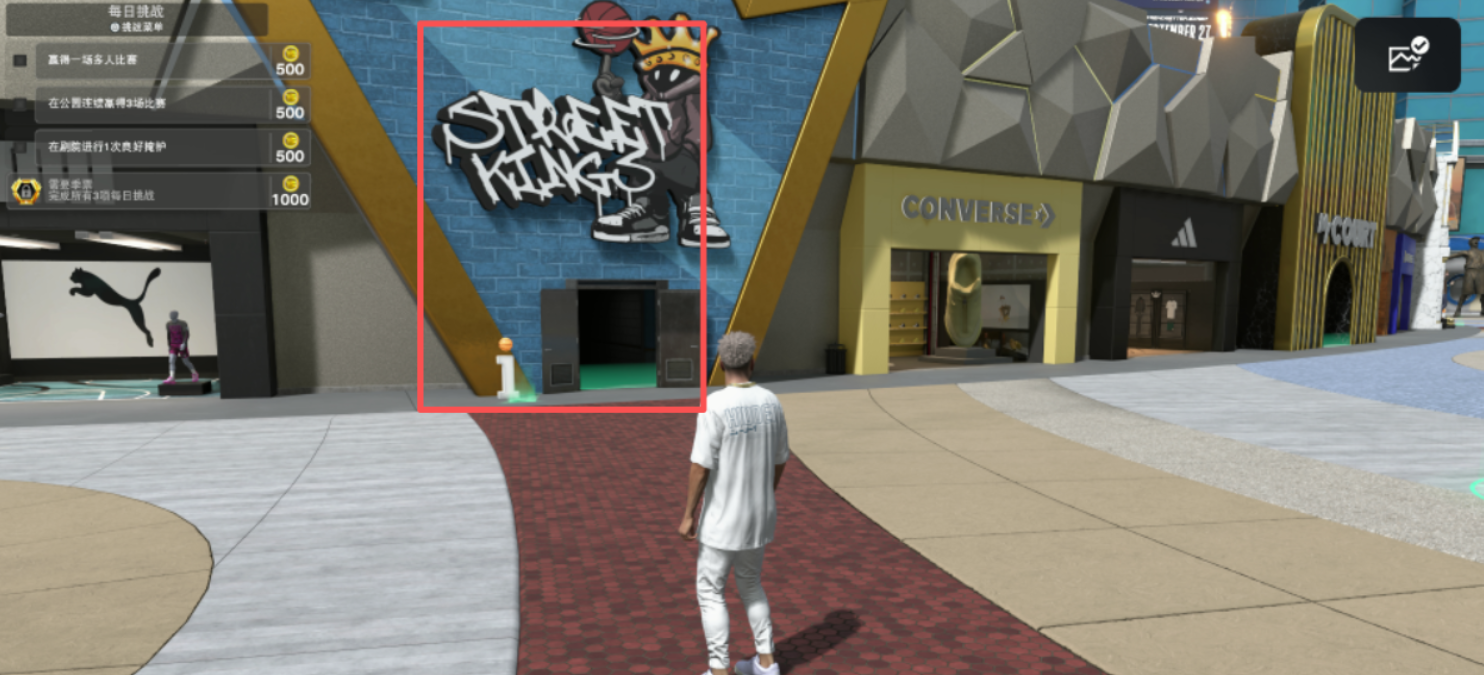
- Use the keybindings you set up to open 2K26 and navigate your player to "Street Kings"
- Your streaming software setup is complete!
Notes and Important Information
- You can plug an Xbox controller into your PC, but this is not recommended as frequently plugging and unplugging can be inconvenient
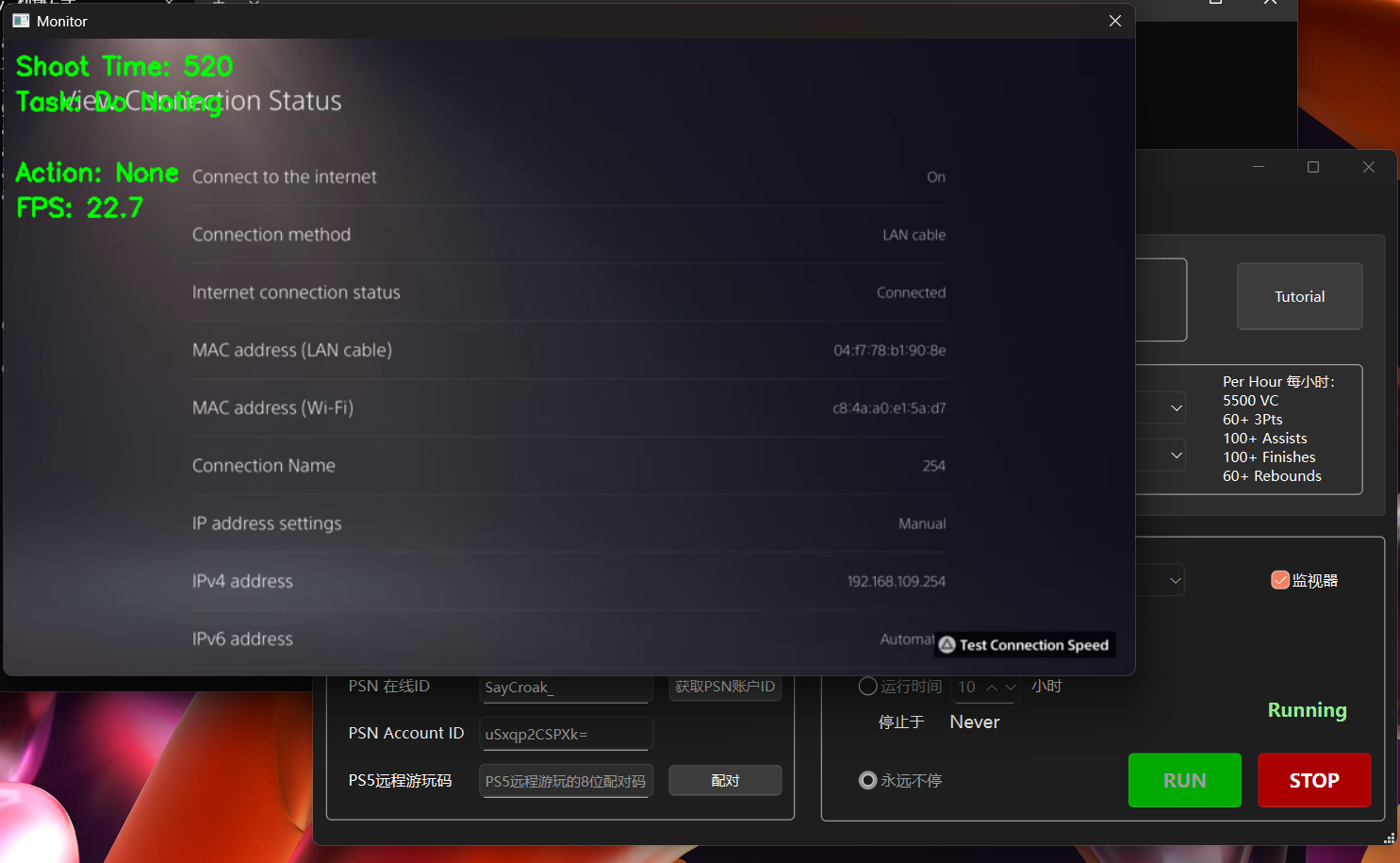
- Ensure the Xbox is not connected to any controllers (including wireless) while the script is running — this will interfere with the stream
- Once the script starts, do not use the computer — it may affect the script's operation
- If the script seems unresponsive, click on the XStreaming window with your mouse to ensure it has focus